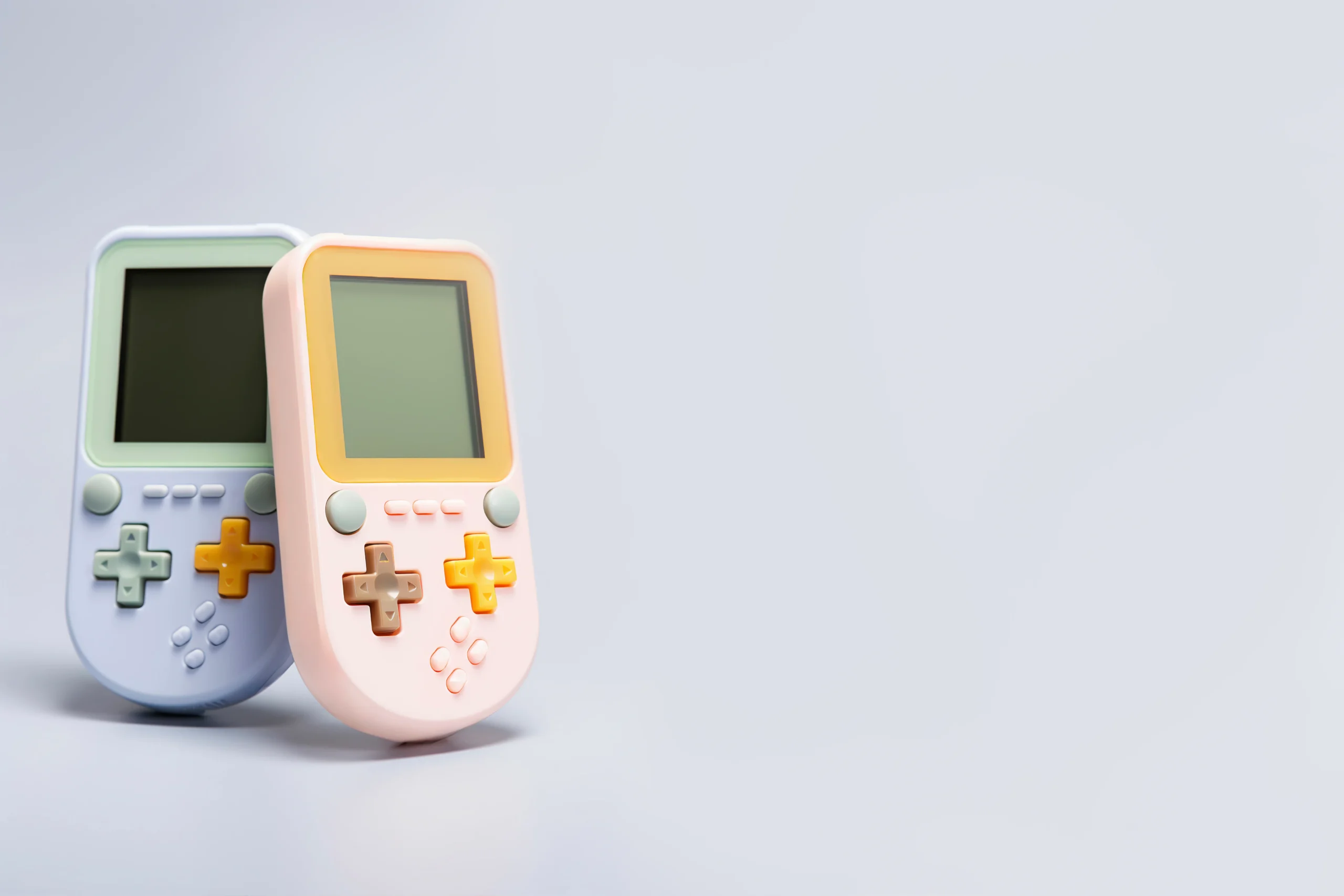
Plugging in the HSSGameStick should feel like stepping straight into classic gaming. But for many people, the first experience is a mix of excitement and confusion—menus feel crowded, controllers don’t respond instantly, and some games don’t behave as expected. This guide is built to fix that. It explains how the HSSGameStick actually works in real use, not just how it’s “supposed” to work on paper.
Understanding the HSSGameStick
The HSSGameStick is a compact gaming device that connects directly to your TV through an HDMI port. It comes preloaded with thousands of retro games from older consoles and arcade systems. Most packages include the HDMI game stick, one or two wireless controllers, a USB receiver (dongle), a USB power cable, and a memory card containing the games. There’s no installation process like a traditional console. Everything is already set up—you just need to connect it properly.
Setting Up the HSSGameStick Correctly
Getting the setup right from the beginning saves you from most common issues later.
Connecting the Device
Start by plugging the HSSGameStick into your TV’s HDMI port. Make sure it’s fully inserted, as a loose connection can cause display problems. Next, connect the USB power cable. You can plug it into your TV’s USB port, but using a wall adapter usually provides more stable power.
Powering On
Switch your TV to the correct HDMI input. Within a few seconds, the game menu should appear on the screen. If nothing shows up, double-check the power connection first. Most “no signal” problems come from insufficient power rather than HDMI issues.
Understanding the Controller Setup
The controllers are wireless and connect through a small USB receiver. This part is easy to overlook, but it’s essential.
Connecting Controllers
Plug the USB receiver into the game stick or its attached cable. Without this, the controllers won’t work at all. Turn on the controllers using the Start or Home button. In most cases, they connect automatically within a few seconds.
Fixing Connection Issues
If a controller doesn’t respond, check or replace the batteries, turn the controller off and back on, make sure you’re within a reasonable distance, and reinsert the USB receiver. Some models require manual pairing. If that’s the case, hold the sync button until the LED indicator stabilizes.
Navigating the Game Menu
The interface is packed with games, which can make it feel overwhelming at first. Once you understand the basics, it becomes much easier to use.
Basic Controls
Use the directional pad or joystick to move through the menu. Press the confirm button (usually “A”) to open a game and “B” to go back. The Start button may open additional options depending on the emulator being used.
Finding Games Faster
Instead of scrolling endlessly, look for organized categories such as Arcade, NES, SNES, Sega, and PlayStation. Some versions also include a search feature, which is the quickest way to find specific titles.
Playing Games Smoothly
Not all games on the HSSGameStick perform the same way. Understanding what to expect helps avoid frustration.
What Works Best
Simpler systems like NES, SNES, and Sega Genesis usually run very smoothly. These are the safest choices if you want consistent performance.
Where Issues May Happen
More complex systems, especially PlayStation or certain arcade titles, may experience slight lag, audio delay, or frame drops. This isn’t a fault in your setup—it’s a limitation of the hardware.
Practical Tip
If a game doesn’t run well, switch to another version or platform. Often, the same game exists in multiple formats, and one will perform better than the others.
Saving and Loading Your Progress
Saving games is not always obvious, especially if you’re used to modern consoles.
How Save States Work
Most games use an emulator-based save system rather than in-game saving. To save your progress, press Start or a button combination like Select + Start, open the emulator menu, and choose “Save State.” To load a saved game, return to the same menu and select “Load State.”
Important Things to Remember
Your saved data is stored on the memory card. Avoid removing it while the device is powered on, as this can corrupt your files. Always exit games properly before turning off the system.
Common Problems and How to Fix Them
Even though the HSSGameStick is simple, small issues can still come up. Most of them have straightforward solutions.
No Signal on TV
This usually means the device isn’t getting enough power or the HDMI input is incorrect. Try switching USB ports or using a wall adapter.
Controllers Not Working
Make sure the USB receiver is connected. Replace batteries and restart the controllers if needed.
Games Not Appearing
Check that the memory card is inserted properly. Restart the device to reload the game list.
Lag or Slow Performance
This often depends on the game itself. Switching to a different version or system can solve the issue quickly.
Small Adjustments That Improve Experience
These simple changes can make a noticeable difference in how the HSSGameStick performs.
Use a Stable Power Source
A wall adapter provides more consistent power than most TV USB ports. This helps prevent random restarts or performance drops.
Organize Your Favorites
If your system allows it, mark frequently played games as favorites. This saves time and avoids scrolling through long lists.
Maintain Proper Distance
Wireless controllers work best when you’re sitting within a few meters of the device. Too much distance can cause input delay.
Handle the Memory Card Carefully
Never remove it while the system is running. Treat it like the core of your device—because it is.
Final Thoughts
The HSSGameStick is built for convenience, but it still requires a bit of understanding to use it properly. Once you get past the initial setup and learn how the menu, controllers, and save system work, everything becomes much smoother. The key is to keep things simple. Focus on proper connections, stable power, and games that run well on the device. With that approach, the HSSGameStick delivers exactly what it promises—a quick and enjoyable way to revisit classic gaming without unnecessary complications.