Understanding how to take a screenshot on a Chromebook is essential for capturing and sharing information efficiently. Whether you’re a student needing to capture lecture notes, an educator preparing instructional materials, or a general user documenting technical issues, mastering this skill can enhance your productivity on a Chromebook. In this comprehensive guide, we’ll explore the various methods for taking screenshots, utilize keyboard shortcuts, and cover troubleshooting tips to ensure you’re equipped with the best techniques for capturing your screen.
Why Screenshots on Chromebooks Are Unique
Chromebooks, powered by Chrome OS, offer a distinctive user experience compared to other operating systems. The Chrome OS screenshot functionality is straightforward yet different, especially for users transitioning from Windows or macOS. Understanding these unique features is crucial for leveraging the full potential of your Chromebook.
See also Tech Giants Envision a Future Beyond Smartphones: A New Era of Innovation
Step-by-Step Guide to Taking a Screenshot
Using Keyboard Shortcuts
The quickest way to capture your screen on a Chromebook is by using keyboard shortcuts. These shortcuts vary slightly depending on the type of screenshot you want to take:
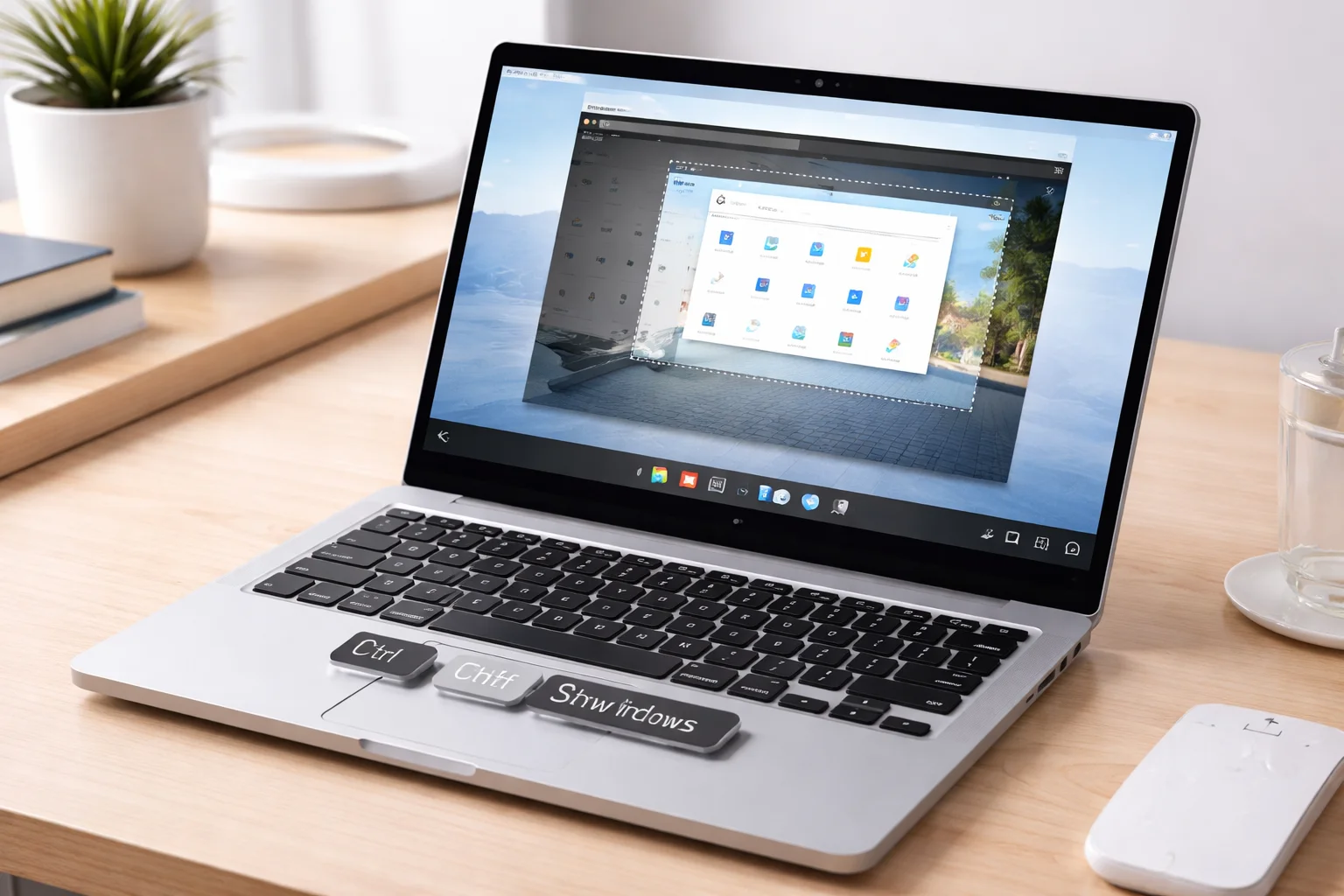
- Full-Screen Screenshot: Press Ctrl + Show Windows key. The Show Windows key is typically located in the top row, where the F5 key would be on a traditional keyboard.
- Partial Screenshot: Press Shift + Ctrl + Show Windows. After pressing these keys, click and drag to select the area you wish to capture.
- Window Screenshot: Press Ctrl + Alt + Show Windows. This captures the active window.
Capturing a Full-Screen Screenshot
Taking a full-screen screenshot is often necessary when you need to capture all visible areas of your screen. This method is especially useful for documenting entire webpages or presentations. Once captured, the screenshot is automatically saved to your Downloads folder and is also accessible through Google Drive if synced.
Capturing a Partial Screenshot
For more control over what you capture, a partial screenshot allows you to select a specific area of the screen. This method is perfect for capturing snippets of information without extraneous details. The partial screenshot tool provides a crosshair for precise selection.
Capturing a Specific Window
When working with multiple applications, capturing a specific window can streamline your documentation process. Use the Ctrl + Alt + Show Windows shortcut to focus on the window of interest, avoiding clutter from other open applications.
Tools and Extensions for Screenshots
While keyboard shortcuts provide basic functionality, Chrome OS also supports various tools and extensions to enhance screenshot capabilities. Popular choices include:
- Lightshot: A lightweight Chrome extension offering advanced editing and sharing features.
- Awesome Screenshot: This extension provides annotation tools and the ability to capture entire webpages, even those requiring scrolling.
- Nimbus Capture: Known for its user-friendly interface and robust editing tools.
Editing and Annotating Your Screenshots
After capturing a screenshot, you may need to edit or annotate it for clarity. Chromebooks offer basic editing tools through the built-in image editor, allowing you to crop, rotate, and adjust brightness. For more advanced features, consider third-party apps like Pixlr or Canva.
Troubleshooting Common Screenshot Issues
Occasionally, users may encounter issues while attempting to take screenshots on a Chromebook. Common problems include:
- Screenshots Not Saving: Ensure your Chromebook’s storage isn’t full and check the Downloads folder for saved screenshots.
- Keyboard Shortcuts Not Working: Verify that your keyboard settings are correct and that the Show Windows key is functioning properly.
- Chrome OS Updates: Sometimes, issues arise from outdated software. Regularly update your Chromebook to the latest version of Chrome OS.
Frequently Asked Questions
How do I take a partial screenshot on a Chromebook? Use Shift + Ctrl + Show Windows and click and drag to select the desired area.
Why won’t my screenshots save on my Chromebook? Check your available storage and ensure that screenshots are being saved to the correct folder.
Can I use third-party apps to take screenshots on Chromebook? Yes, extensions like Lightshot and Nimbus Capture provide additional functionality.
How do I record the screen on a Chromebook? Use extensions like Screencastify or Loom for screen recording purposes.
What should I do if my Chromebook screenshot shortcut is not working? Verify your keyboard settings and update your Chrome OS.
Additional Resources and Tips
To further enhance your Chromebook experience, consider exploring additional resources on optimizing Chromebook performance and utilizing Chrome OS updates. These guides can provide valuable insights into maximizing your device’s capabilities.
Remember, the key to mastering screenshots on a Chromebook is practice. Experiment with different methods and tools to find what works best for your needs. As you become more comfortable, you’ll discover new ways to leverage screenshots for educational, professional, and personal purposes.
Conclusion
In conclusion, knowing how to take a screenshot on a Chromebook is an essential skill in today’s digital landscape. Whether you’re capturing full screens, specific windows, or partial areas, the methods described in this guide provide a comprehensive approach to mastering screenshots on Chromebook. By utilizing built-in tools, extensions, and troubleshooting tips, you can ensure a seamless experience. Embrace these techniques to enhance your productivity, communication, and overall Chromebook usage.
For ongoing updates and tips, bookmark this guide and revisit it as needed. Stay informed about new tools and Chrome OS features to continuously improve your screenshot capabilities.